English translation of a Persian article from the WebTarget archive. The date above is the original publication date. Some advice, especially technical details, may be outdated.
Images make up an important part of a website’s visible content. Their file size, quality, and format affect both its usability and its visual appeal. This article compares three formats commonly used when it was written: GIF, JPEG, and PNG, and explains when each is useful.
GIF
GIF stands for Graphics Interchange Format. Introduced by CompuServe in 1987, it can store still graphics and animation. It uses LZW compression and a palette of up to 256 colours selected from a wider RGB colour range. The compression is lossless for the stored palette, but reducing a full-colour image to that palette can lose colour detail. This makes GIF better suited to line drawings, diagrams, and simple logos than to photographs or smooth gradients. Its support for animation also makes it useful for simple moving images, which can be created in image-editing tools.
JPEG
JPEG takes its name from the Joint Photographic Experts Group, which developed the standard. It is commonly used for photographs and other images with many colours and gradual changes in tone. JPEG uses lossy compression: reducing file size removes some image information. Lower quality settings can introduce visible artefacts, particularly around text, patterns, and sharp edges. Experiment with the settings and compare the exported image with the original. The examples here use Photoshop’s historical Save for Web workflow.
PNG
PNG stands for Portable Network Graphics. It was introduced in 1996 as an alternative to GIF. It supports indexed colour, RGB colour, greyscale, and transparency. Its alpha channel is particularly useful for graphics that need smooth transparent edges. PNG uses lossless compression based on zlib, preserving the image information stored in the file. Unlike JPEG, it is well suited to many graphics containing text and sharp edges. It uses RGB-based colour rather than CMYK. The original article discusses two common export options: PNG-8 and PNG-24.
PNG-8 uses a palette with up to 256 colours. Depending on the export tool, it can also store transparency. Reducing the palette can change the image even though PNG’s compression itself is lossless.
PNG-24 stores a much wider range of colours. Exports that also include an alpha channel are often described as 32-bit RGBA files.
The original article noted transparency problems in older browsers. That is historical context, rather than a description of current browser support. PNG is useful for small icons, detailed logos, and other graphics that need clear edges or transparency. Edition note: this comparison covers the three formats in the original tutorial; it is not a complete survey of today’s image formats.
Optimising images for the web
The following Photoshop screenshots demonstrate how export settings affect an image. The interface is from the original tutorial, but the useful habit is to compare both visual quality and file size before publishing.
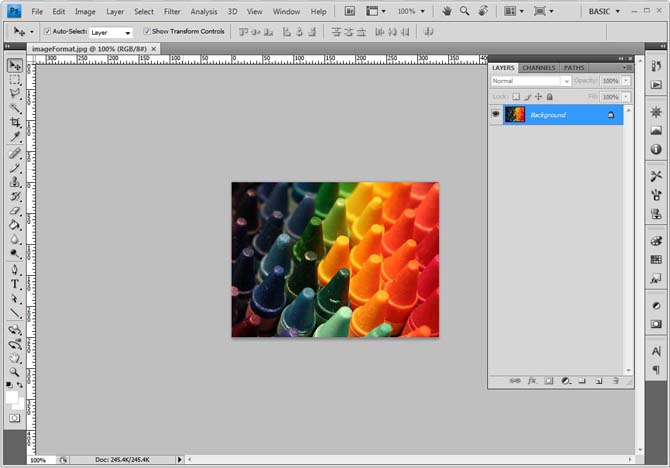
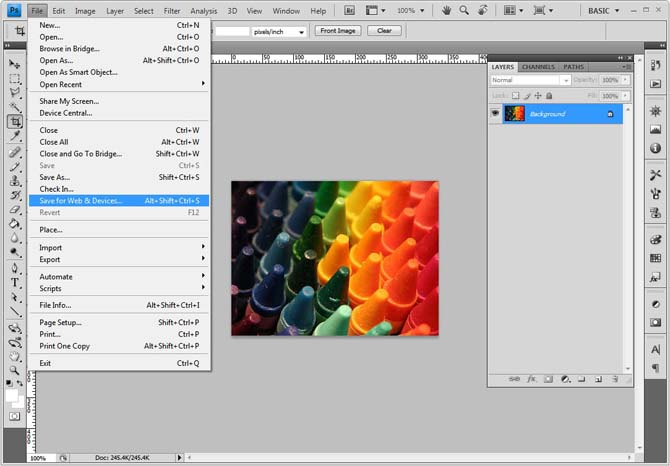
Open the image in Photoshop and choose File → Save for Web in the version shown here.
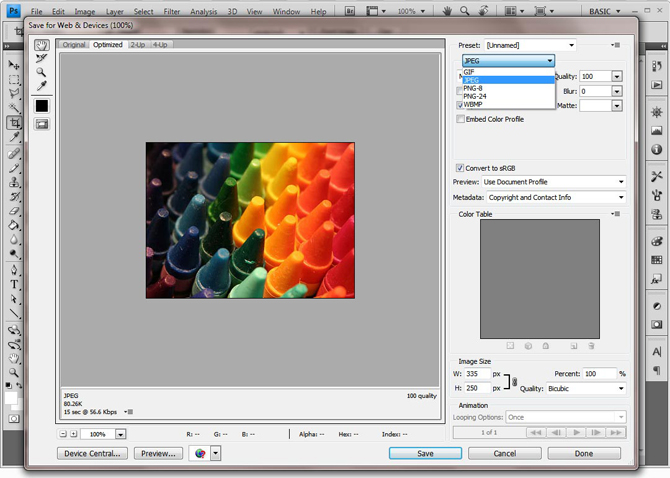
In the export window, select the image format you want to test.
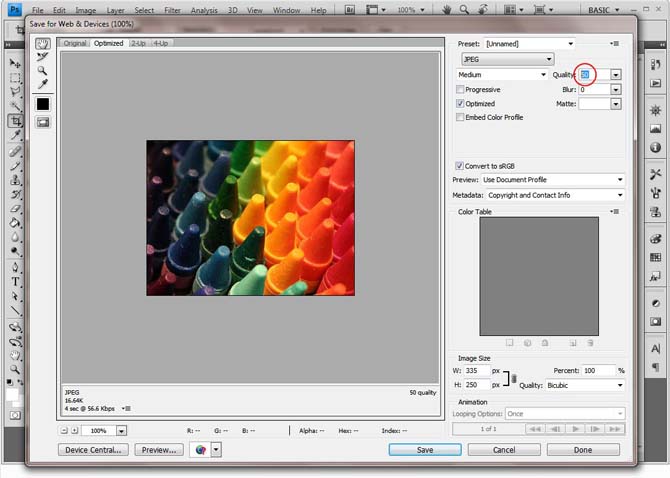
For JPEG, increase or decrease the quality setting and compare the resulting file size and visible detail.
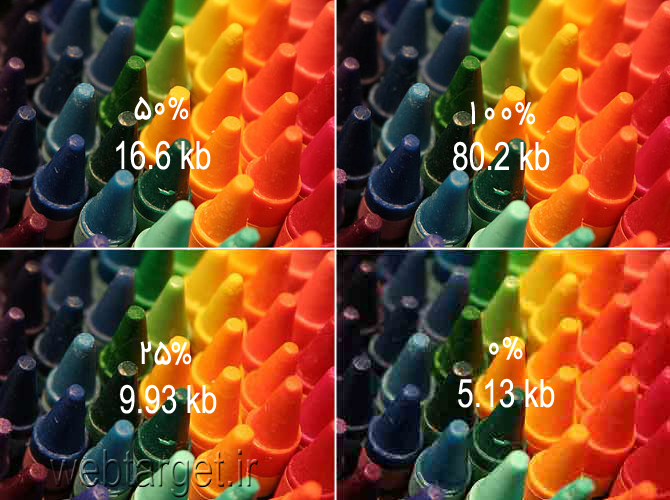
The image above compares JPEG exports at different quality settings.
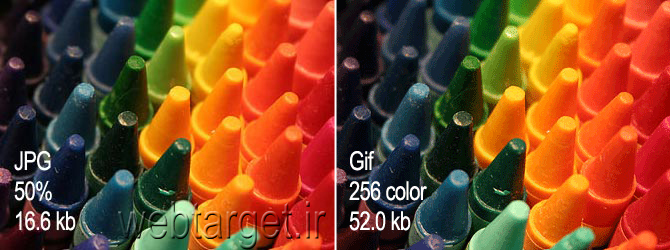
The next comparison shows the difference between GIF and JPEG for the same photograph.
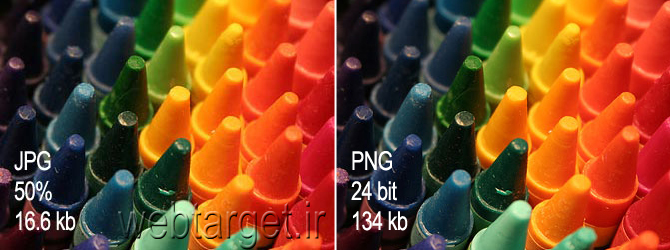
In this example, exporting the photograph as PNG increased its file size without a substantial visible improvement. The original tutorial chose a JPEG at 50% quality for this particular image. That setting is an example, not a universal rule for every photograph.

For the graphic above, which contains text and straight lines, GIF preserves the edges more clearly than the JPEG example.



The final examples compare GIF, PNG-8, and PNG-24, including transparent backgrounds. A full-colour PNG with alpha transparency can preserve smooth edges and partial transparency, while palette-based exports can behave differently. Choose the format by examining the actual output, rather than assuming the same option is best for every image.